

PDF EXPORT GUIDES
Adobe Distiller
Converting a PostScript file to PDF with Acrobat Distiller, step by step.
PDF export settings
Convert the PostScript file you created earlier to PDF in Acrobat Distiller using the settings below.
- 01
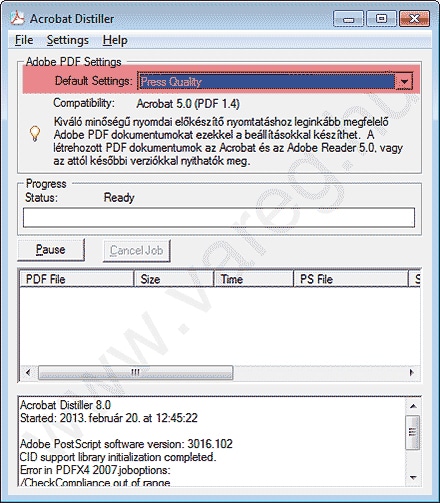
Acrobat Distiller — application window
Choose the factory "Press Quality" setting.
- 02
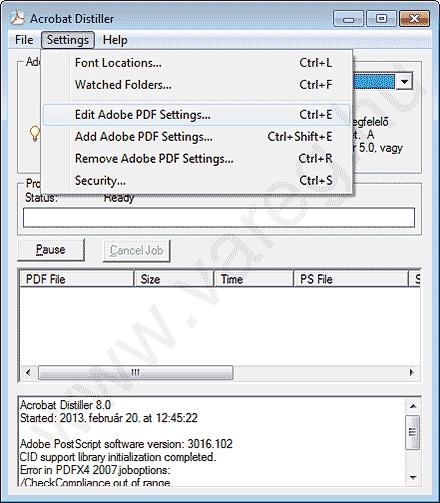
Acrobat Distiller — application window
In the "Settings" menu, click "Edit Adobe PDF Settings".
- 03
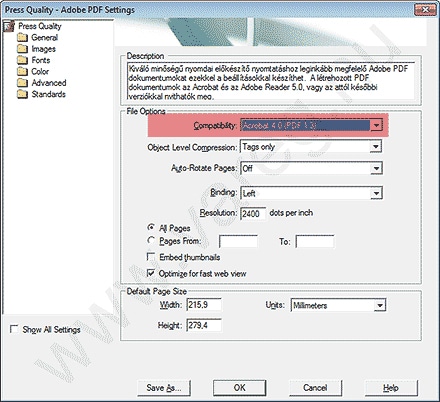
General
Set "Compatibility" to "Acrobat 4.0 (PDF 1.3)".
- 04
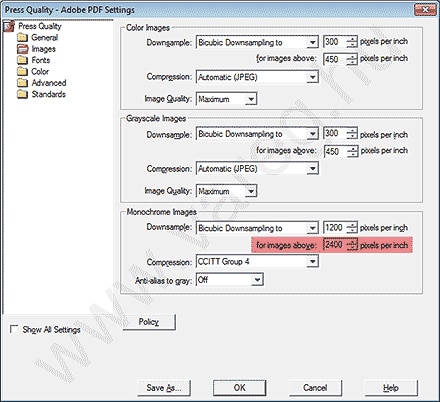
Pictures
Set the part marked in red to 2400.
- 05
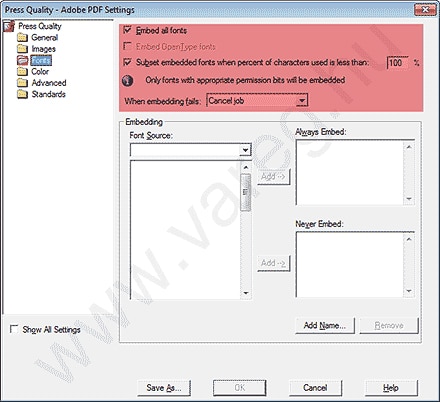
Fonts
Set the parts marked in red to match the screenshot; with these settings Distiller embeds every font used into the PDF, and if it can’t, it stops writing the PDF. If that happens, try converting the text set in that typeface to curves/outlines, or try manually adding the problem font to the "Always Embed" list.
- 06
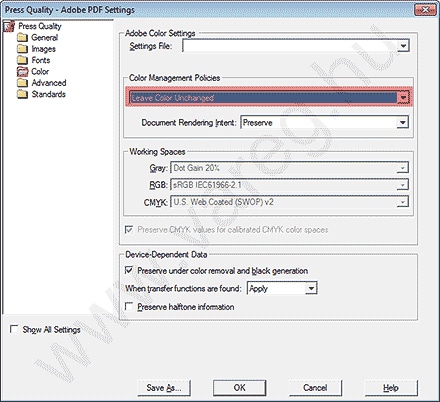
Color
Set "Color Management Policies" to "Leave Color Unchanged".
- 07
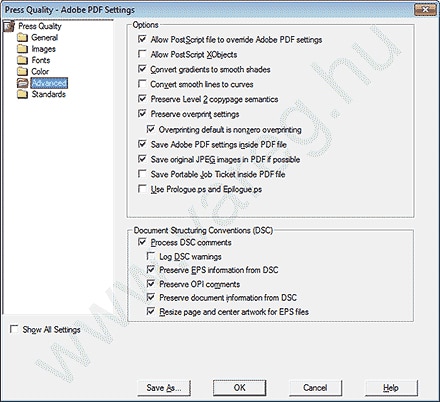
Advanced
If the settings shown below already match what you see, there is nothing to change on this tab.
- 08
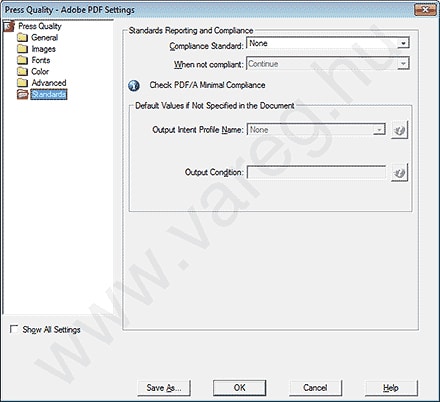
Standards
If the settings shown below already match what you see, there is nothing to change on this tab.
Questions about the export?
We help with the right settings. Response time: 24–48 hours.