

PDF EXPORT GUIDES
CorelDRAW
Exporting a print-ready PDF from CorelDRAW, step by step.
PDF export settings
Set the settings marked in red to the value shown in the screenshot; where nothing is marked, the factory default is fine.
- 01
Publish to PDF
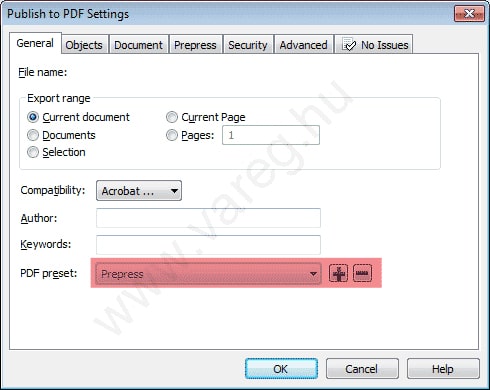
Set the "PDF Preset" tab to the factory "Prepress" setting.
- 02
General
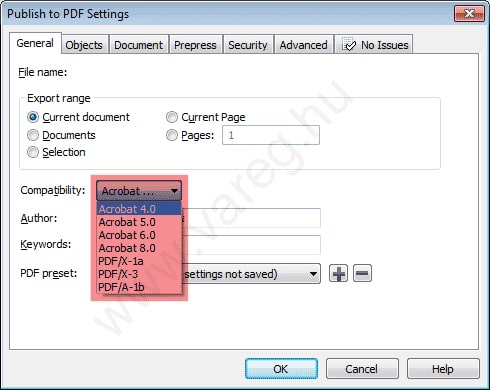
Set the "Compatibility" tab to "Acrobat 4.0".
- 03
Objects
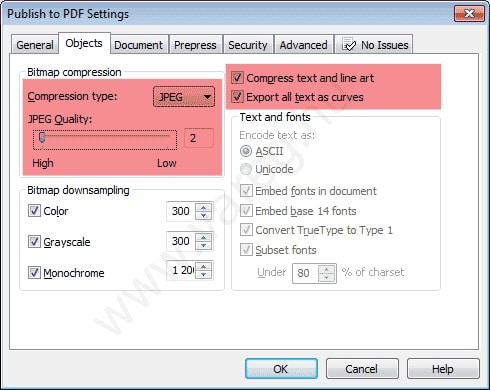
Set "Bitmap compression" to "JPEG", quality to "High" ("2"). Check the "Export all text as curves" checkbox.
- 04
Document
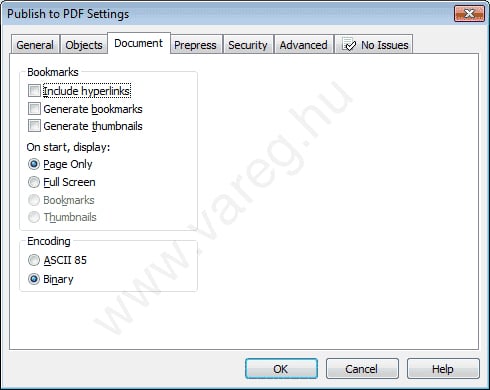
If the settings shown below already match what you see, there is nothing to change on this tab.
- 05
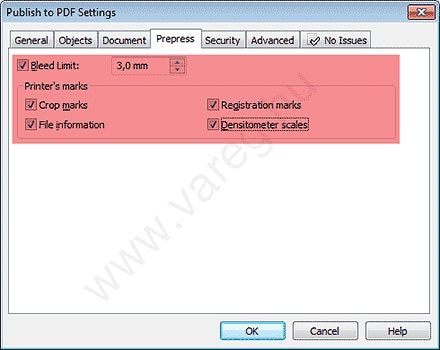
Prepress
Set the parts marked in red to match the screenshot; if you used a 5 mm bleed, set "Bleed Limit" to 5 mm!
- 06
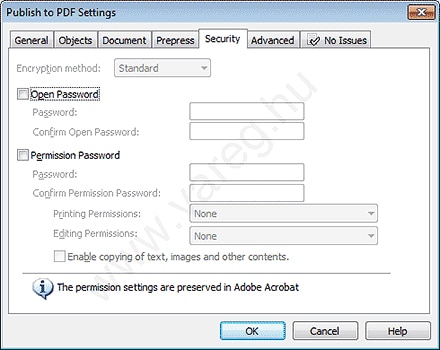
Security
If the settings shown below already match what you see, there is nothing to change on this tab.
- 07
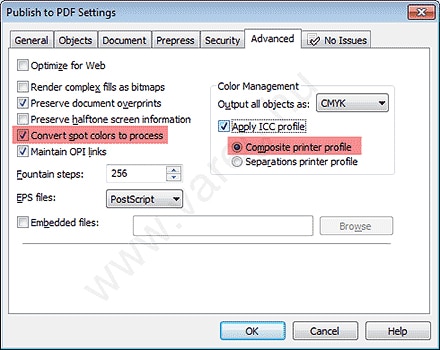
Advanced
If the piece is being printed in four colors (CMYK), check "Convert spot colors to process". Under "Color Management", check "Composite printer profile".
Questions about the export?
We help with the right settings. Response time: 24–48 hours.